LLM Servers
There are two primary Inference Engines serving LLMs: Hugging Face Pipelines and vLLM. While Hugging Face Pipelines are able to run virtually every Text Generation and Conversational LLM, they are not the most efficient in terms of memory management and throughput. On the other hand, vLLM is a state-of-the-art LLM Inference Engine that has many optimizations—such as PagedAttention, continuous batching, and optimized CUDA kernels—but it doesn't support every open source LLM. To check if your model is supported by vLLM, check their documentation. Generally, vLLM supports most popular LLM architectures and adds new support frequently. The default Inference Engine for LLMs in Chariot is Hugging Face Pipelines.
Configuring vLLM
When creating a vLLM Inference Server for an LLM in Chariot, there are some vLLM configuration options that are available.
| Option name | Explanation | Possible values | Default value |
|---|---|---|---|
bitsandbytes_4bit | Whether to load the model with in-flight 4-bit quantization | True or False | False |
max_model_length | The desired context length for the model | Integer > 0 | Determined by model config |
enable_prefix_caching | Whether to enable prefix caching | True or False | False |
seed | Initial seed to use for generation | Integer > 0 | 0 |
enforce_eager | Enforce eager mode (don't use CUDA graphs) | True or False | False |
enable_auto_tool_choice | Enable the model to generate its own tool calls when it deems appropriate | True or False | False |
tool_call_parser | Parser for model tool calls (required for tool calling) | String | None |
kv_cache_memory_bytes | Desired memory (in bytes) to be allocated toward KV cache | String | None |
quantization | Method used to quantize the weights | String | Determined by model config |
load_format | The format of the model weights to load | String | "auto" |
gpu_memory_utilization | The fraction of GPU memory to be used for the model executor (between 0 and 1) | Float | 0.9 |
reasoning_parser | The parser for reasoning tokens | String | None |
More details about these options can be found in the vLLM documentation.
-
The
bitsandbytes_4bitis not a vLLM engine argument. Instead, it is a proxy for passingquantization=bitsandbytesandload_format=bitsandbytes. -
In order to enable tool calling in vLLM, you must pass
enable_auto_tool_choice=Trueand pass a valid value fortool_call_parser. The correct parser depends on the model you are serving. More details can be found here.
To start a vLLM Inference Server and configure it with one or more of these settings using the SDK, set the inference_engine field to vLLM and the vllm_configuration field to have your desired vLLM settings. For example:
from chariot.client import connect
from chariot.models import Model
connect()

model = Model(name="ModelName", project="ModelProject", start_server=False)

settings = {
    "inference_engine": "vLLM",
    "predictor_cpu": "3",
    "predictor_ephemeral_storage": "20Gi",
    "predictor_gpu": {
        "count": 1,
        "product": "Tesla-T4"
    },
    "predictor_memory": "14Gi",
    "scale_down_delay_seconds": 3600,
    "vllm_configuration": {
        "bitsandbytes_4bit": True,
        "enable_prefix_caching": True,
        "enable_auto_tool_choice": True,
        "tool_call_parser": "mistral",
        "gpu_memory_utilization": 0.8
    }
}

model.set_inference_server_settings(settings)
model.start_inference_server()
Configuring Hugging Face Pipelines
When creating a Hugging Face Pipeline Inference Server for Hugging Face models within Chariot, additional keyword arguments—called "kwargs"—can be provided to customize the model loading process. These keyword arguments are passed directly to the from_pretrained method when the model gets loaded for the pipeline.
- UI
- SDK
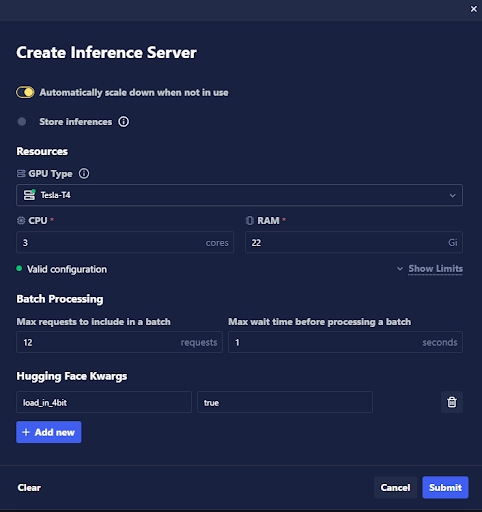
In the Create Inference Server modal, a list of Hugging Face kwargs is provided at the bottom of the modal, along with each kwarg's value. To add a new kwarg, click the + Add new button and provide the necessary information.
Added kwargs may be removed by clicking the trash can icon to the right of the kwarg's value. Previously added kwargs will be retained once added, so when additional Inference Servers are created, the previous kwargs will be listed as available.
Key word arguments supplied in this way are not validated, so be sure to type them correctly in order to prevent issues.
Once your Hugging Face kwargs have been added as intended, click the Submit button to finish creating your Inference Server.
Use the huggingface_model_kwargs argument when creating the Inference Server settings with the Chariot SDK to supply the kwargs to the model load function.
from chariot.client import connect
from chariot.models import Model
connect()

model = Model(name="ModelName", project="ModelProject", start_server=False)
settings = {
    "huggingface_model_kwargs": {"attention_dropout": 0.05}
}
model.set_inference_server_settings(settings)
model.start_inference_server()
By supplying your additional keyword arguments when creating your Inference Server, you can leverage the full flexibility of Hugging Face models in the Chariot platform and tailor them to your specific needs. For a comprehensive list of available kwargs, please refer to the from_pretrained Hugging Face docs for your specific model type.
In-Flight Quantization
As mentioned above, it is possible that your model won't fit on the GPUs that you have access to in your Chariot instance. To alleviate this, both of our serving runtimes support in-flight inference quantization via bitsandbytes. Quantizing a model's weights to lower precision will allow them to fit into a smaller GPU for inference.
In-flight quantization is different than serivng pre-quantized models, which are models whose weights have been quantized before upload. Examples of pre-quantization strategies include GGUF, AWQ, and GPTQ. Pre-quantized models typically have the quantization strategy in their name (e.g., Llama-3.2-3B-Instruct-GGUF, so you'll know if your model is pre-quantized or not. If you'd like to serve a pre-quantized model, you must use vLLM and specify the correct load_format.
The following is an example of how to start a Hugging Face Pipelines Inference Server with in-flight quantization in the SDK:
from chariot.client import connect
from chariot.models import Model
connect()

model = Model(name="ModelName", project="ModelProject", start_server=False)
settings = {
    "inference_engine": "Huggingface",
    "predictor_cpu": "7",
    "predictor_ephemeral_storage": "20Gi",
    "predictor_gpu": {
        "count": 1,
        "product": "Tesla-V100-SXM2-16GB"
    },
    "predictor_memory": "57Gi",
    "huggingface_model_kwargs": {"load_in_4bit": True} # Quantization
}
model.set_inference_server_settings(settings)
model.start_inference_server()
Note that you could equivalently pass vllm_configuration = {"bitsandbytes_4bit": True} if you wanted to use vLLM intead of Hugging Face.
Our Hugging Face Pipeline runtime supports 8-bit and 4-bit quantization, and vLLM supports 4-bit quantization. As a rough benchmark, an 8-bit quantized 7B model will need about 8-10GB of VRAM, and a 4-bit quantized 7B model will need about 5-6GB of VRAM. In addition, about 25Gi of CPU memory is needed (sometimes more, like with 13B models).
Some LLMs are known to have quirks when you quantize them, which can result in errors. In our experience, 8-bit quantization can be more problematic than 4-bit quantization.
Performing Inferences
There are two task types for LLMs, so the way you should perform inference depends on the task type.
Text Generation Models
For Text Generation models, use the complete inference method, and simply pass the string you wish to complete:
from chariot.client import connect
from chariot.models import Model
connect()

model = Model(name="ModelName", project="ModelProject", start_server=False)
# Assume inference server is already started and ready

response = model.complete("The cat in the")

print(response.choices[0].text) # "Hat"
Conversational Models
For Conversational models, use the chat inference method, and pass a sequence of user/assistant messages:
from chariot.client import connect
from chariot.models import Model
connect()

model = Model(name="ModelName", project="ModelProject", start_server=False)
# Assume inference server is already started and ready
messages = [
    {"role": "user", "content": "Can you help me with my geography homework?"},
    {"role": "assistant", "content": "Sure! What do you need help with?"},
    {"role": "user", "content": "I need to identify the similarities and differences between tributaries and estuaries"}
]

response = model.chat(messages)

print(response.choices[-1].message.content) # "Tributaries and estuaries are both important features ..."
In both cases, the response objects coming from complete and chat are compatible with the OpenAI API standard.
Inference Parameters
Inference parameters are also supported in the SDK. For example, if you wanted to use temperature = 0.2 for your inference call, you pass it as normal:
model.chat(messages, temperature=0.2)
The available inference parameters for both Text Generation and Conversational task types are described below. Note that some options are only supported in vLLM runtimes.
| Parameter Name | Description | Supported With Hugging Face Pipelines | Supported With vLLM |
|---|---|---|---|
max_completion_tokens | Maximum number of new tokens for the model to generate. If using the Hugging Face engine, the default value is 50. | ✅ | ✅ |
min_tokens | Minimum number of tokens to generate per output sequence before EOS or stop_token_ids can be generated. | ✅ | ✅ |
presence_penalty | Float that penalizes new tokens based on whether they appear in the generated text so far. Values > 0 encourage the model to use new tokens while values < 0 encourage the model to repeat tokens. | ❌ | ✅ |
frequency_penalty | Float that penalizes new tokens based on their frequency in the generated text so far. Values > 0 encourage the model to use new tokens while values < 0 encourage the model to repeat tokens. | ❌ | ✅ |
repetition_penalty | Float that penalizes new tokens based on whether they appear in the prompt and the generated text so far. Values > 1 encourage the model to use new tokens while values < 1 encourage the model to repeat tokens. | ✅ | ✅ |
temperature | Float that controls the randomness of the sampling. Lower values make the model more deterministic while higher values make the model more random. Zero means greedy sampling. | ✅ | ✅ |
top_p | Float that controls the cumulative probability of the top tokens to consider. Must be in [0, 1]. Set to 1 to consider all tokens. | ✅ | ✅ |
top_k | Integer that controls the number of top tokens to consider. | ✅ | ✅ |
min_p | Float that represents the minimum probability for a token to be considered, relative to the probability of the most likely token. Must be in [0, 1]. Set to 0 to disable this. | ✅ | ✅ |
seed | Random seed to use for the generation. | ❌ | ✅ |
use_beam_search | Whether to use beam search. | ✅ | ✅ |
best_of | Number of output sequences that are generated from the prompt. From these best_of sequences, the best sequence is returned. best_of must be greater than or equal to the number of returned sequences. This is treated as the beam width when use_beam_search is True. By default, best_of is set to 1. | ✅ | ✅ |
length_penalty | Float that penalizes sequences based on their length. Used in beam search. length_penalty > 0.0 promotes longer sequences while length_penalty < 0.0 encourages shorter sequences. | ✅ | ✅ |
stop | List of strings that stop the generation when they are generated. The returned output will not contain the stop strings. | ❌ | ✅ |
stop_token_ids | List of tokens that stop the generation when they are generated. The returned output will contain the stop tokens unless the stop tokens are special tokens. | ✅ | ✅ |
include_stop_str_in_output | Whether to include the stop strings in output text. Defaults to False. | ❌ | ✅ |
ignore_eos | Whether to ignore the EOS token and continue generating tokens after the EOS token is generated. | ❌ | ✅ |
logprobs | Number of log probabilities to return per output token. When set to None, no probability is returned. If set to a non-None value, the result includes the log probabilities of the specified number of most likely tokens, as well as the chosen tokens. | ❌ | ✅ |
top_logprobs | Number of log probabilities to return per prompt token. | ❌ | ✅ |
do_sample | Whether or not to use sampling. Only a valid option for Hugging Face engine. | ✅ | ❌ |
Using the OpenAI Python SDK
Chariot's vLLM Inference Servers are compatible with OpenAI's API specification, meaning that you can swap any OpenAI model with a Chariot vLLM Inference Server by setting the inference URL to be the Chariot model's external URL.
Below is an example of using the openai Python SDK to make a call to a Chariot vLLM server, including tools.
import openai
import json
from chariot.client import connect; connect()
from chariot.models import Model
from chariot.config import get_bearer_token

# Get Chariot model inference URL
model = Model(name="ModelName", project="ModelProject", start_server=False)
model.wait_for_inference_server(timeout=100) # Assume the server is already started and ready
url = model._external_base_url
model_name = f"m-{model.id.lower()}"

# Initialize the OpenAI client
client = openai.OpenAI(base_url=url, api_key=get_bearer_token())

# Define a get_weather tool
tools = [
    {
        "type": "function",
        "function": {
            "name": "get_weather",
            "description": "Get the current weather for a given location in the US.",
            "parameters": {
                "type": "object",
                "properties": {
                    "city": {
                        "type": "string",
                        "description": "The city"
                    },
                    "state": {
                        "type": "string",
                        "description": "The state"
                    },
                    "unit": {
                        "type": "string",
                        "enum": ["celsius", "fahrenheit"],
                        "description": "The temperature unit to use"
                    }
                },
                "required": ["city", "state"]
            }
        }
    }
]


# Make an inference call using the OpenAI client
messages = [
    {"role": "user", "content": "What is the weather in Austin, TX?"}
]
response = client.chat.completions.create(
    model=model_name,
    messages=messages,
    tools=tools,
    tool_choice="auto",
)
If your application doesn't directly instantiate an OpenAI client but still makes OpenAI calls, you can instead set the environment variables:
export OPENAI_API_KEY=$(chariot token)
export OPENAI_API_BASE_URL="https://your-chariot-url.com/api/serve/.../openai/v1"
where ... should be filled in with the Chariot server's external base url.