Annotation Tasks
Annotation Tasks
For large collaborative annotation efforts, use dedicated Annotation Tasks. An Annotation Task represents a specific, managed instance of data annotation within a dataset.
Creating an Annotation Task
Navigate to your project in Chariot. Click the Annotations tab, and click the Create Annotation Task button.
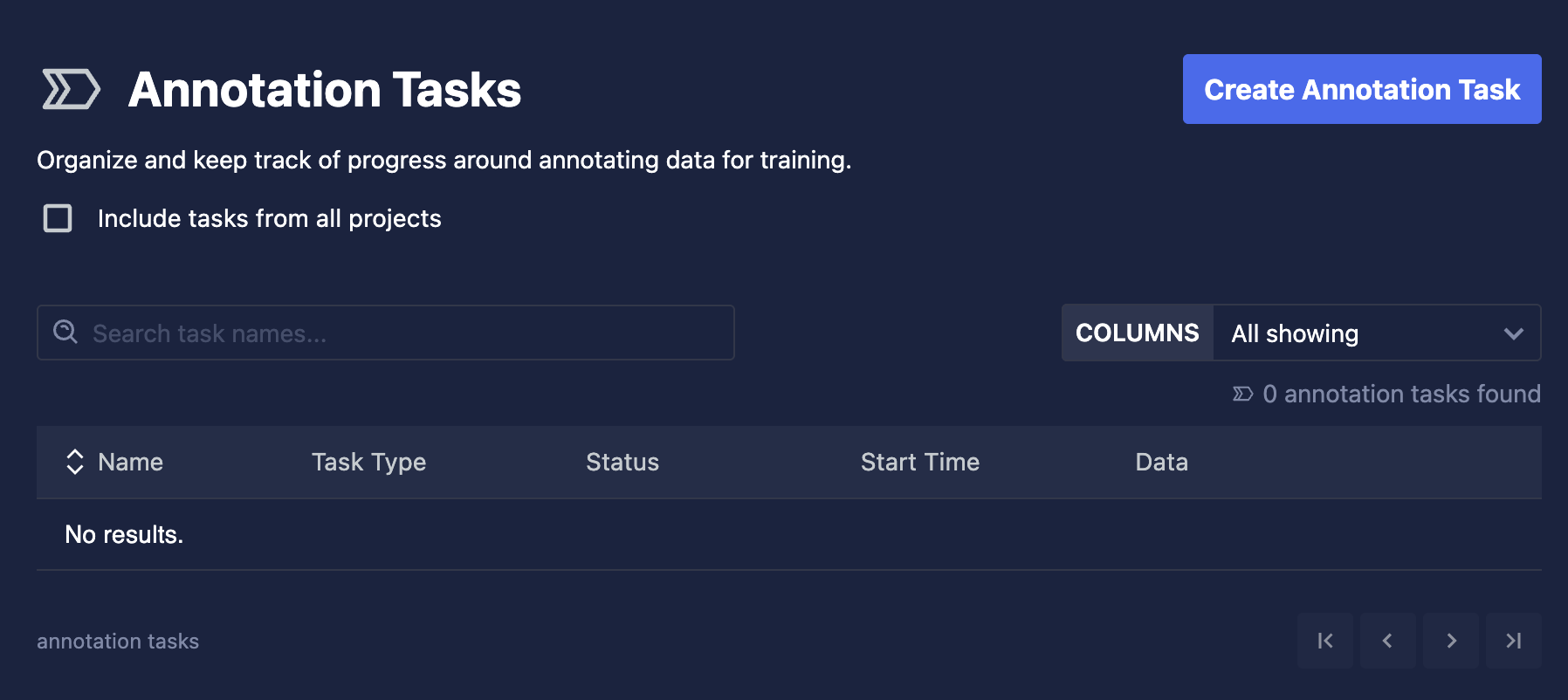
When prompted, provide the following information:
- Name: Provide a name for the Annotation Task.
- Description: Provide a short description of the Annotation Task.
- Data Type: Choose between image datasets and text datasets.
- Task Type: Depending on the dataset type chosen above, specific task types will be available to select.
- Image data types allow for image classification, object detection, oriented object detection, image segmentation, and image text to text task types.
- Text data types allow for text classification, token classification, and text generation task types.
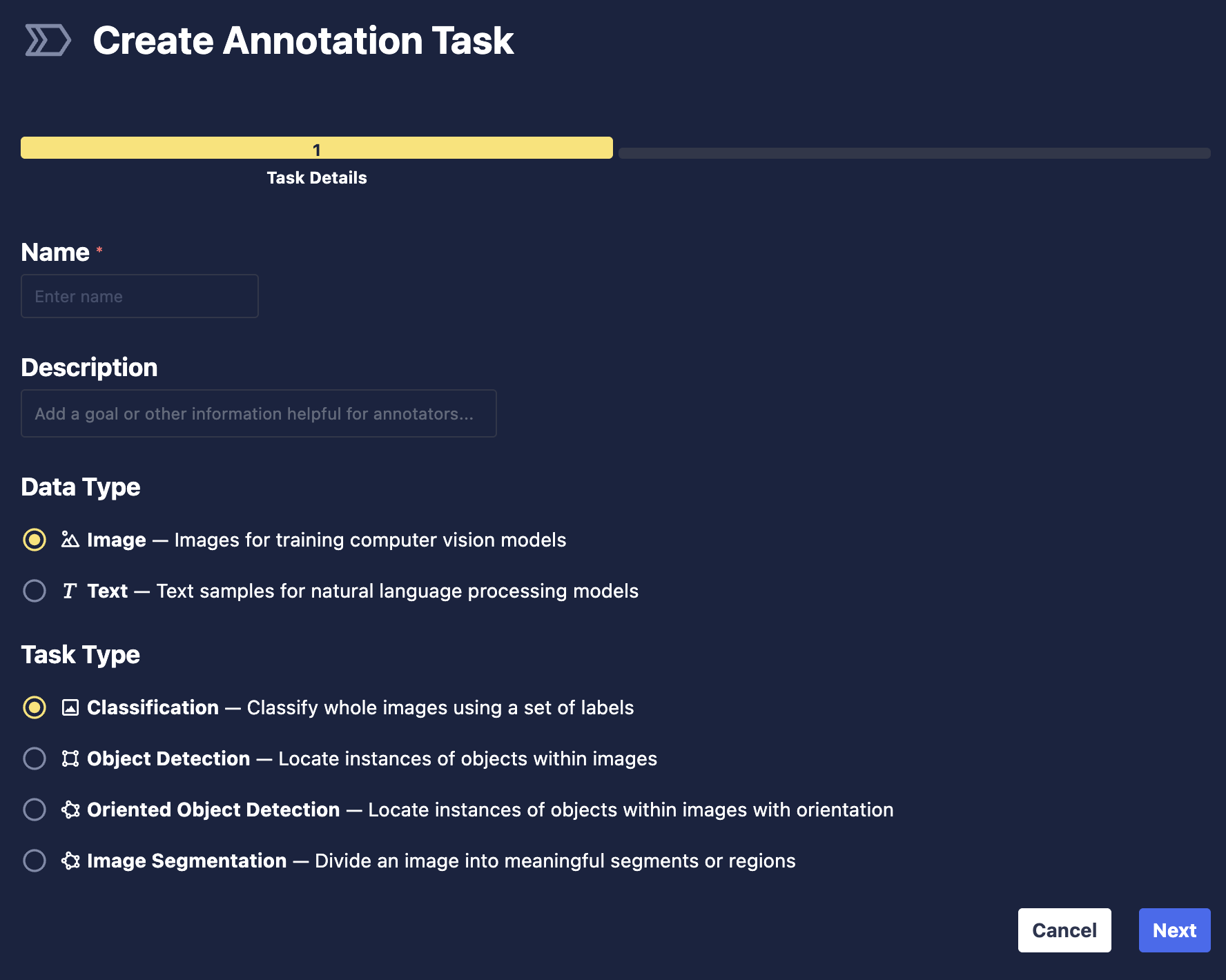
Click the Next button.
Next, you will configure your task. Click Select Dataset, and follow the prompts to select your target dataset.
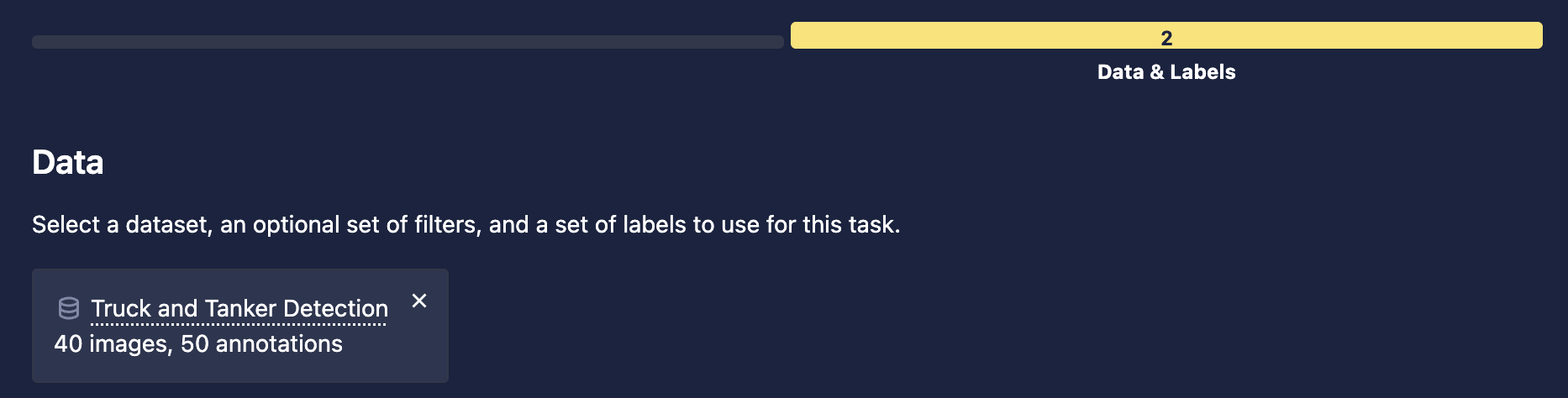
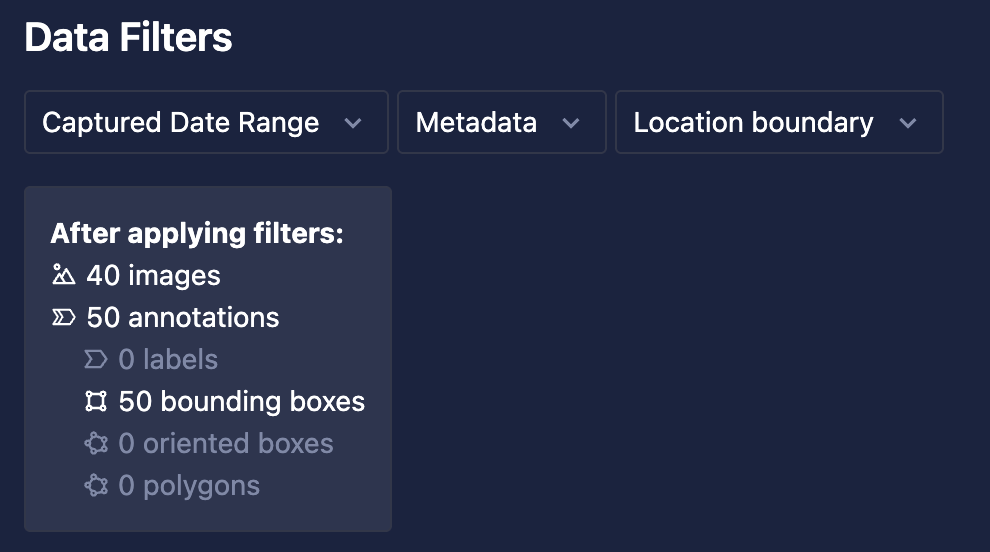
You can optionally define Data Filters for your image data type task; these include Captured Date Range, Metadata, and Location Boundary.
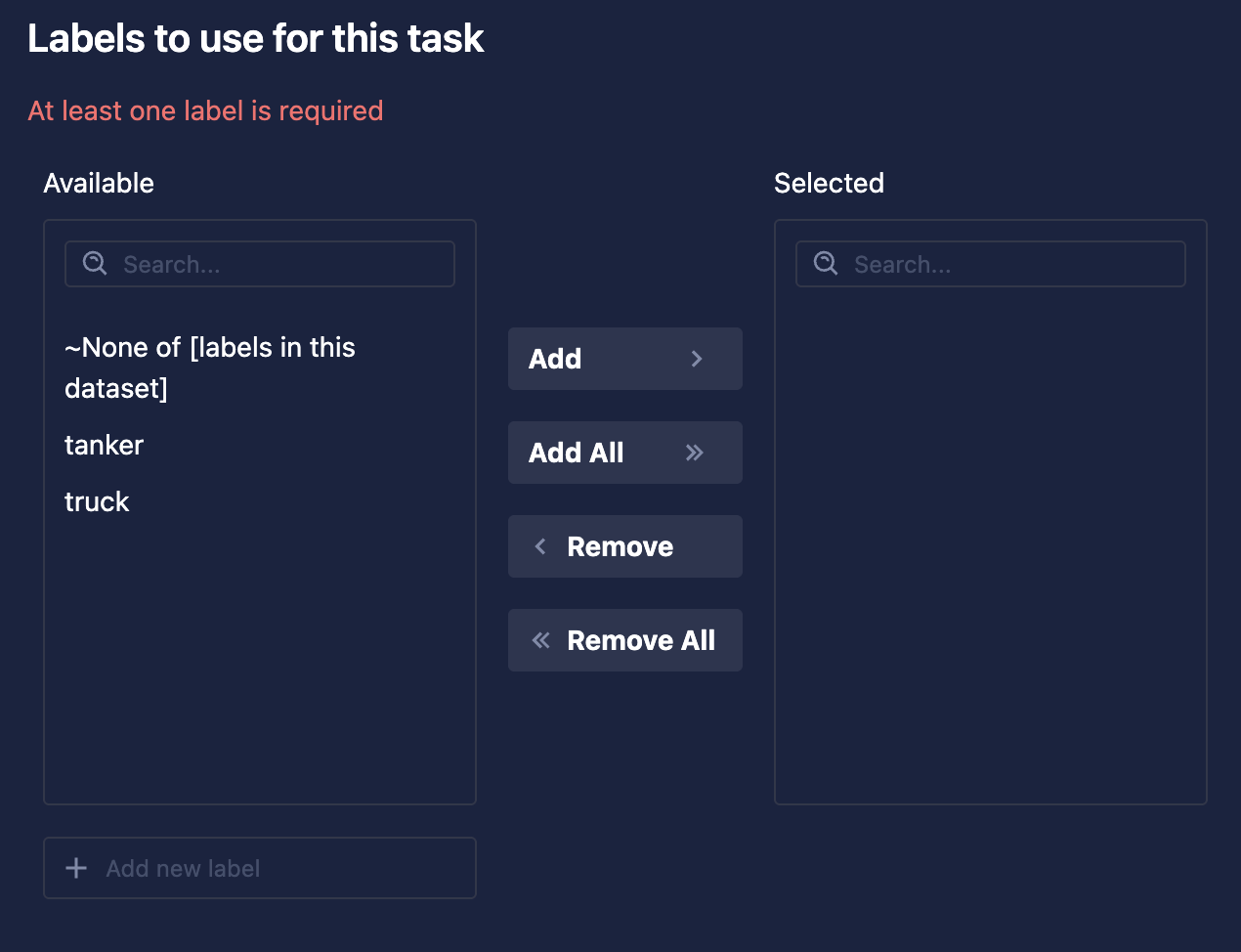
Finally, you must select the labels you intend to use while annotating datums.
Click Create Task.
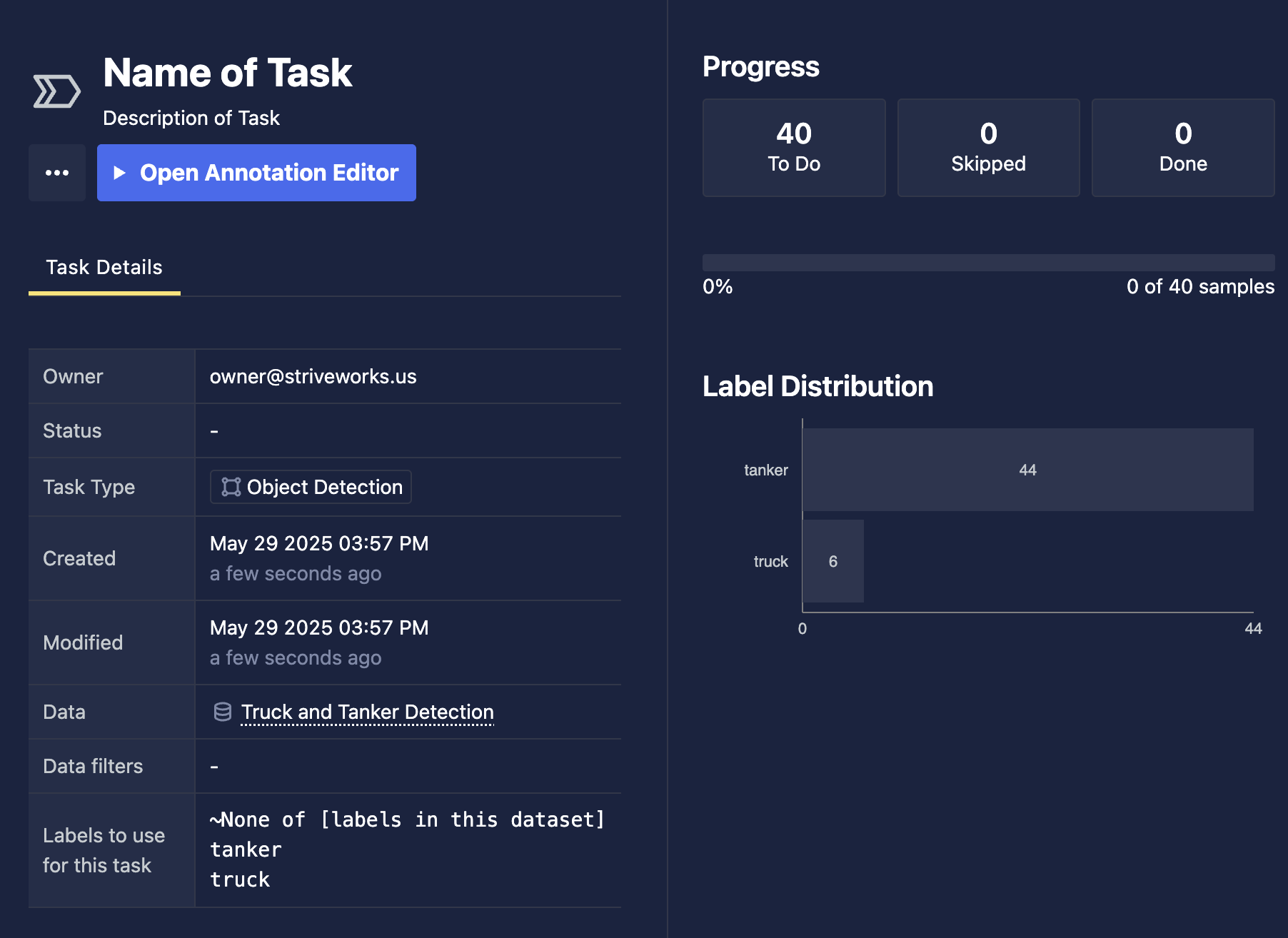
Once the Annotation Task has been created, you will be directed to the Annotation Task Detail page.
On this page, you can view the details of the task, the progress, and existing label distribution. From there, you can open the Annotation Editor and archive the task if needed by selecting the ellipsis menu and selecting Archive Task.
Annotation Editor
The Annotation Editor allows you to navigate through the datums that match the task's filters. As you work through each datum in the task, you can edit annotations, add new annotations, download individual datums, and view datum metadata. Additionally, you can enable Model Hinting, which is a feature designed to increase annotation speed and accuracy by allowing you to select models available in the Chariot Model Catalog that will pre-annotate your data.
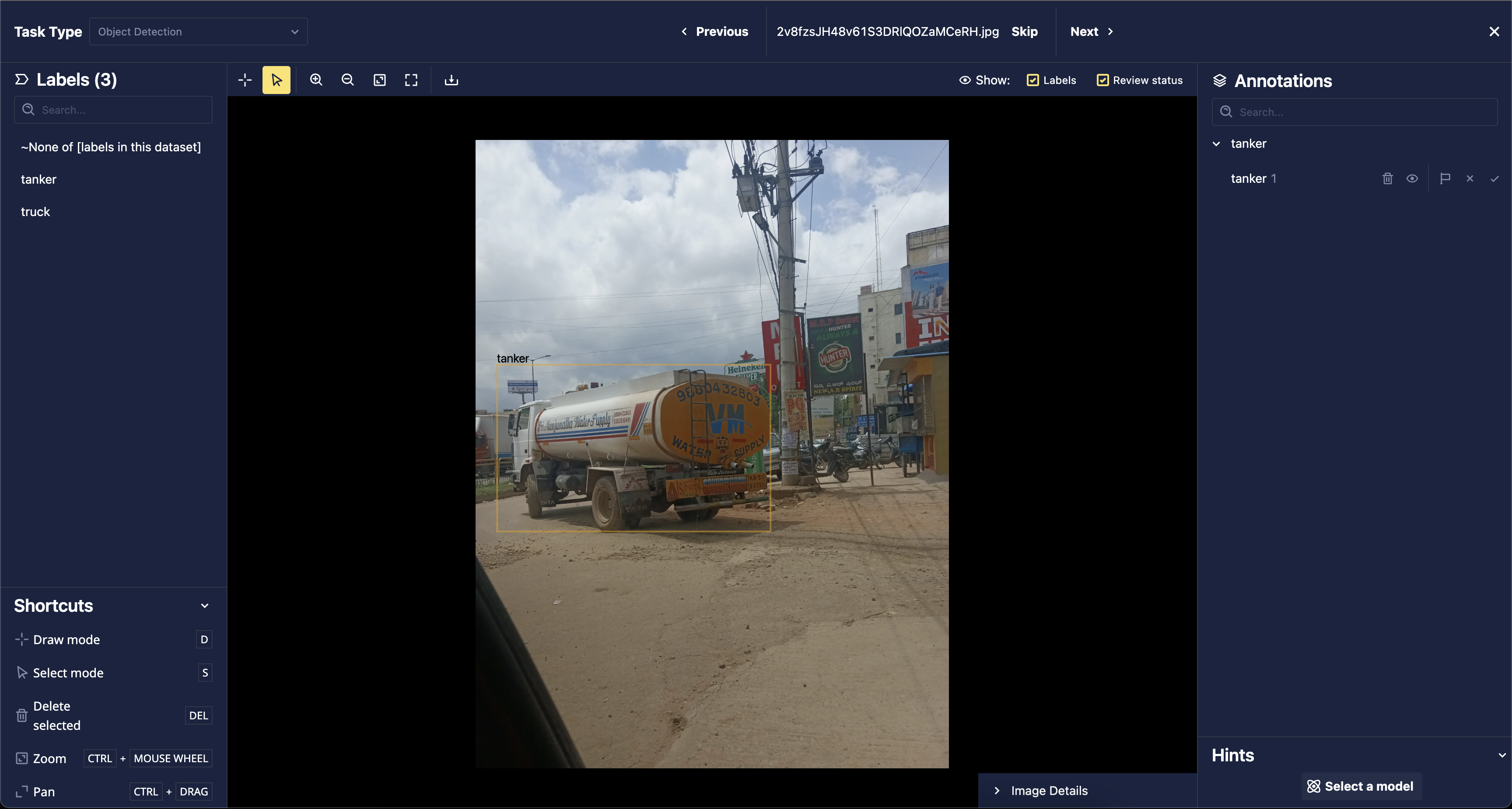
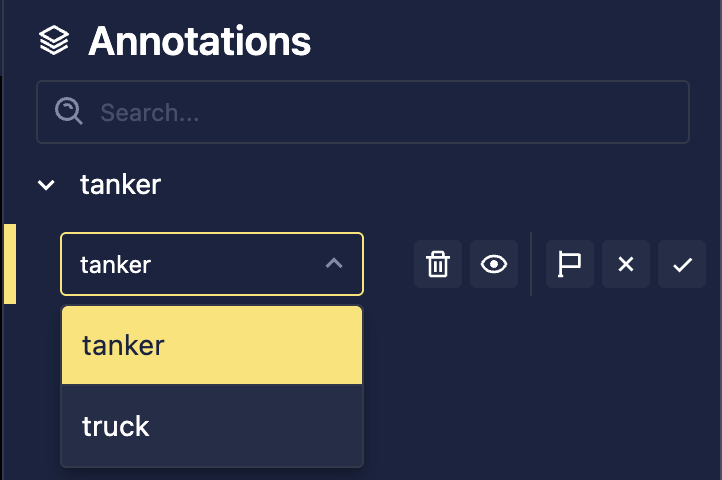
To edit existing annotations, you can select them on the image or from the side navigation bar. From there, you can adjust the annotations on the image as needed, change the label, delete the annotation, or hide it.
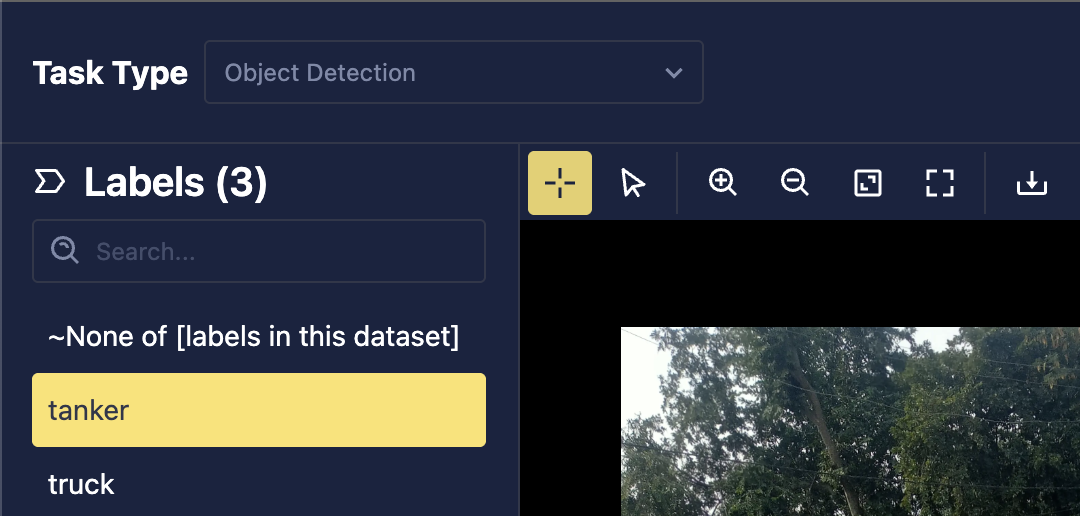
To add new annotations, you can select a label from the left sidebar. Depending on the task type, you'll need to additionally mark the datum appropriately. For example, for oriented object detection, you'll use the reticule tool to draw a bounding box on the datum around the target object. You can then leverage the rotation tool on the canvas to allow for better object fitting than axis-aligned bounding boxes alone.
For Image Segmentation tasks, you can leverage Meta's Segment Anything Model 2 (SAM2) when creating new segmentation masks. See Segment Anything Lasso Tool for more details.
Annotation Review Status
In addition to adding and editing annotations, you can also update an annotation's review status. Review statuses support a variety of workflows. One common use is to ensure annotation quality through a review process. In this workflow, an annotator creates annotations, and a separate reviewer later verifies them. Data scientists can then choose to train models only on annotations that have been verified by creating Views that only contain verified annotations. The annotation statuses that are currently supported are:
- Unreviewed: No review status has been set (i.e., null status).
- Verified: The annotation has been reviewed and marked as valid and correct.
- Rejected: The annotation has been reviewed and marked as incorrect; it either needs adjustment or deletion.
- Needs Review: The annotation has been flagged for further review. This could be because a human annotator is unsure about the correctness of the annotation or because it was generated by AI and requires human verification.
Datum Navigation in a Task
Once you've completed any annotation updates on a specific datum, you can hit Next to get to the next datum to be completed within the task. This will mark the datum as complete within the task. Additionally, if you're viewing a datum and would like to come back to it before marking it complete, you can click Skip. You can also click Previous to navigate back to the datums you previously viewed.
While viewing a datum within a task, that datum is locked for you. Other users will be unable to make annotation edits on that particular datum. However, once you navigate away from that datum, you release the lock. This ensures that concurrent annotators working on the same task will not overwrite each other's work.
You can exit the Annotation Editor at any point by clicking the X in the top-right corner. Your progress will be saved.
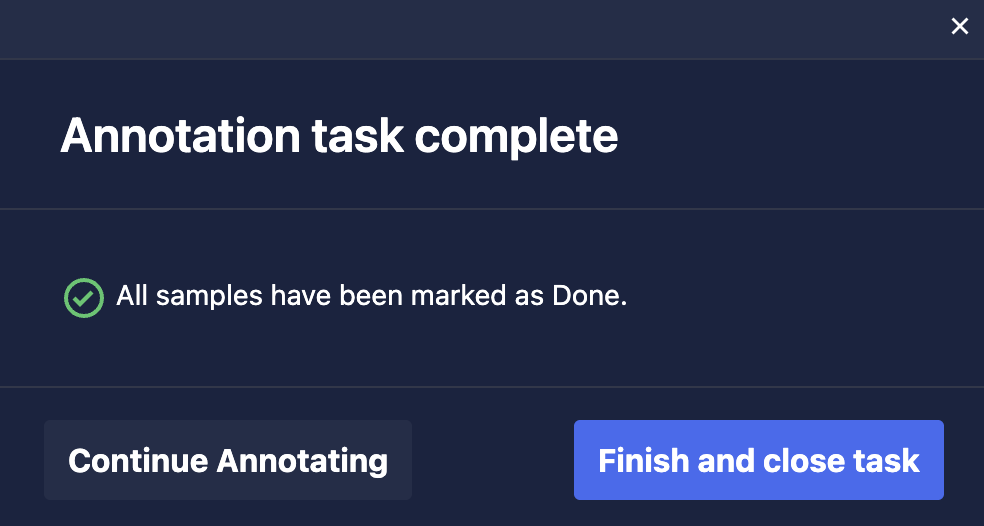
Once all the datums have been reviewed within the task, the task is considered complete and you'll be presented with the option to Finish and close task or Continue Annotating.