AI-Assisted Annotation
Model Hinting
Model hinting is a feature designed to boost annotation speed and accuracy by letting you select models from the Chariot Model Catalog to provide suggestions or pre-annotate data in the Annotation Editor.
To use this feature, click the Select a model button on the right toolbar at the bottom of the window. This will present you with all relevant models that contain one or more class labels configured for the given annotation task.
The chosen model may take a few minutes to become available for use.
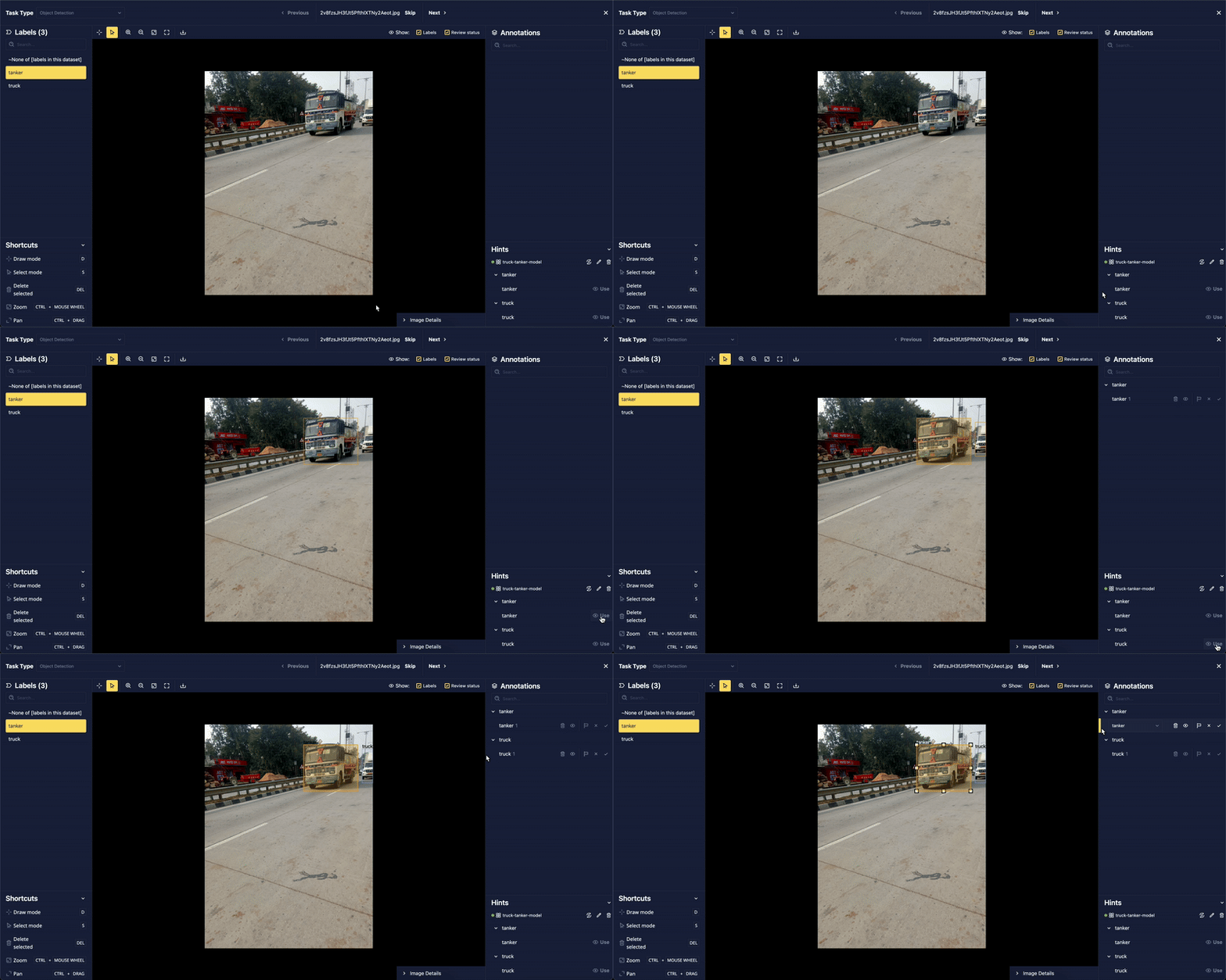
Once the selected model is ready, it will run inference in the background to generate "hints" related to the specified labels. These hints are displayed in a dedicated panel on the lower right-hand portion of the window. Hovering over the hints will render them; to use a hint, click Use. This will add the hint as an annotation that you can further edit, refine, or remove as needed.
Segment Anything Lasso Tool
Chariot's Segment Anything lasso tool leverages Meta's Segment Anything Model 2 (SAM2), deployed within Chariot to automatically generate segmentation masks for parts of an image. Designed exclusively for image segmentation tasks, this tool allows you to efficiently isolate and work with specific image regions, simplifying the segmentation process and enhancing precision.
The lasso tool, powered by SAM2, requires an active Inference Server running in the background. It might take a couple of minutes for the tool to be ready to use. Once the Inference Server is active, you will be able to use the tool without interruption for the rest of your session until there is a 15-minute period of inactivity.
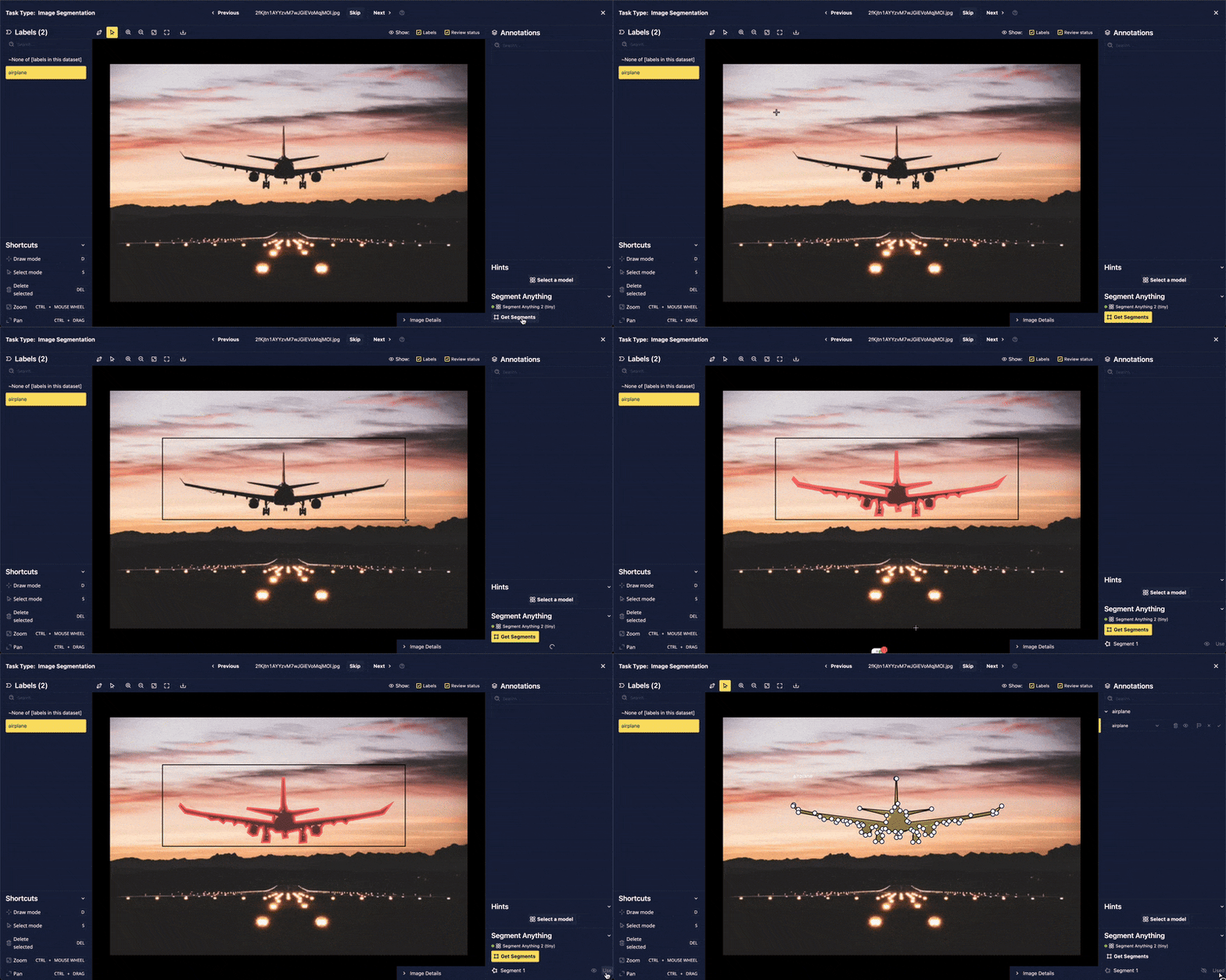
You can leverage the lasso tool by clicking Draw Box and drawing a box around the part of the image that contains the object you wish to segment.
If the model identifies the object correctly, you will see a segmentation mask appear around it. The list of contours generated by SAM can be viewed in the lower right-hand sidebar. To use a contour as an annotation, click Use. The mask will be added as the currently selected label in the annotation panel, where you can further edit, refine, or remove it. Often, you may want to split the polygon into multiple polygons, potentially with different labels. For more details on how to do this, see the Splitting Polygons section.
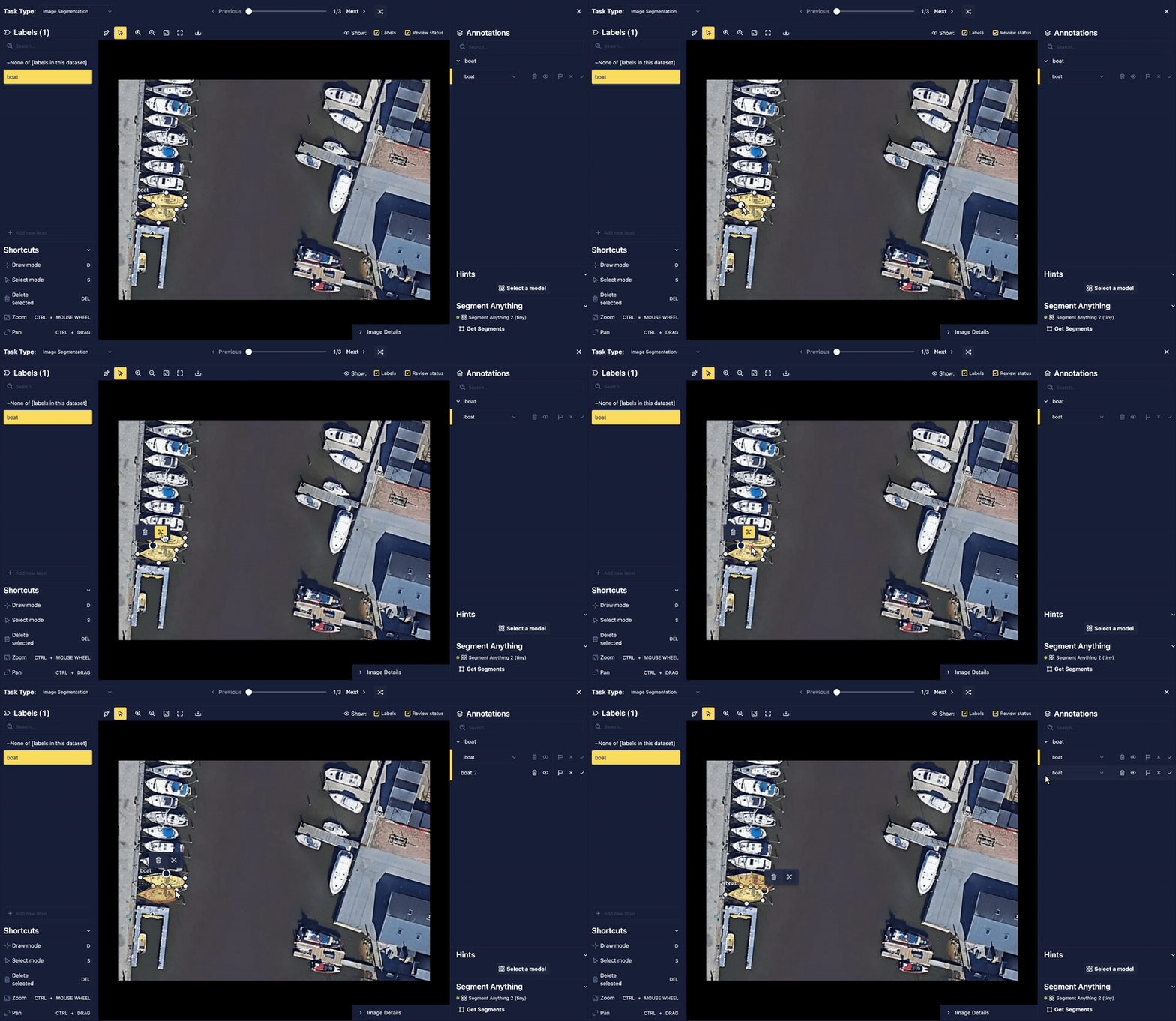
Splitting Polygons
For image segmentation tasks, different entities may have been incorrectly segmented as a single entity, requiring the annotator to split them. To split a polygon, you can select a starting point and click on the scissors icon to initiate the split. You can then choose additional points within the polygon and select a final point to complete the split.